How to Convert PDF to Word
Need to edit a PDF but can't change the text? The fastest fix is to convert the PDF into a Word document, make your changes there, and turn it back into a PDF when you are done. Below are three free ways to do it: our online converter, Microsoft Word, and Google Docs.
You have a PDF and you need to edit it in Word. Below are five ways to get an editable .docx out of a PDF, starting with the one that keeps the formatting best, followed by what to do with scanned PDFs, Macs, phones and the problems that come up most often.
Convert PDF to Word online (keeps the formatting)
Our free PDF to Word converter extracts the text, images, and even scanned pages from your PDF and rebuilds them as an editable Word document:
- Choose the PDF you want to convert, or drag and drop it onto the page.
- Wait a few seconds while the converter processes the file.
- Download the .docx file and open it in Word to edit.
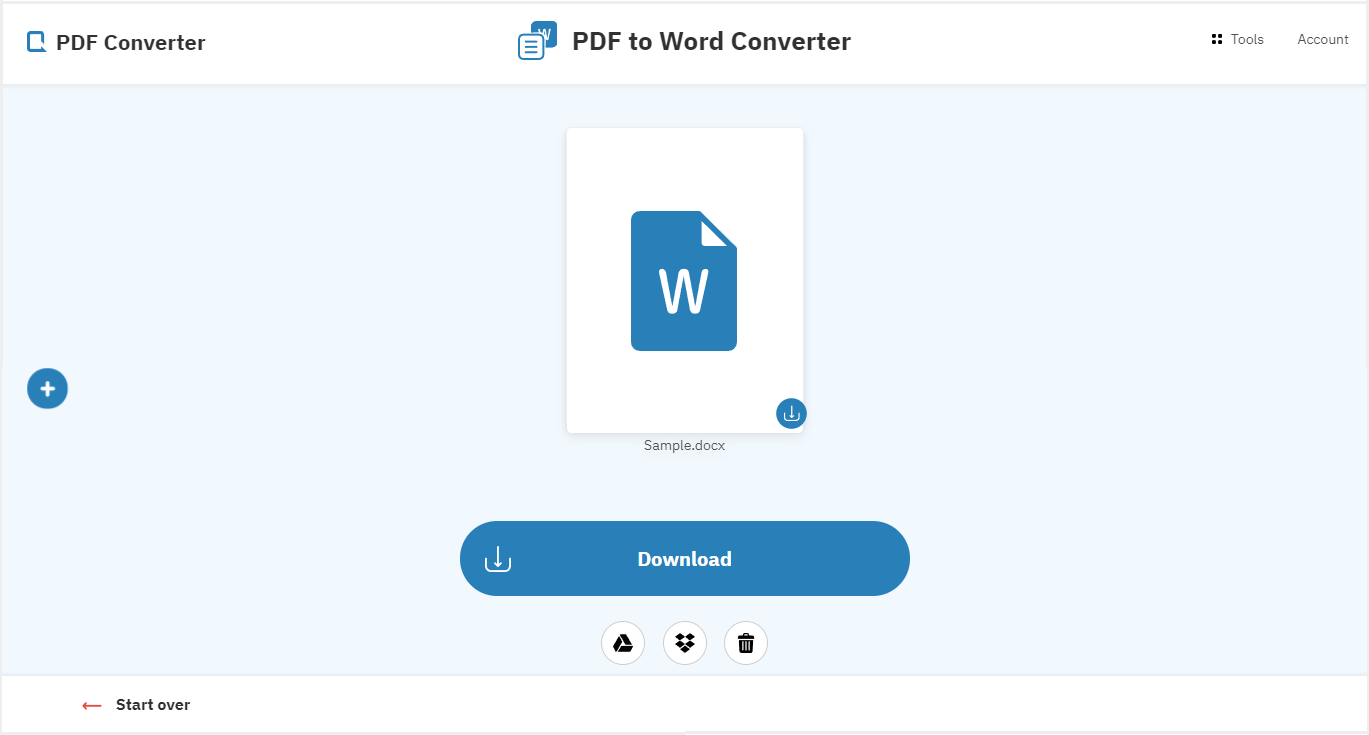
Layout, page breaks, line breaks, and margins survive the conversion, so you rarely need to fix anything by hand. Uploaded files are deleted from our servers after processing, which keeps your information private. No account is needed. Visitors get a short wait between files; a premium membership removes it.
When you finish editing, run the document through the free Word to PDF converter to get a clean PDF back:
- Choose the Word file you want to convert.
- In seconds, your document is converted back into a PDF file.
- Download the finished PDF.
Convert a scanned PDF to Word (OCR)
A scanned PDF is just a picture of a page: there is no text in it to copy, which is why Word and Google Docs give you an image or an empty document. The online converter runs OCR (optical character recognition) on every scanned page and turns the picture back into real, editable text. There is nothing extra to switch on: upload the scan as you would any PDF and the converter detects the scanned pages itself.
OCR works best on straight, evenly lit scans at 300 dpi or higher. If your scan came out crooked or upside down, fix it first with the free Rotate PDF tool, then convert.
Convert PDF to Word using Microsoft Word
Word can open PDFs directly and convert them on the fly:
- Find the PDF on your computer and right-click it.
- Select "Open with" and click "Word".
- Click "OK" when Word offers to convert the PDF into an editable document.
- Edit the document, then click "File", "Save As" and choose "PDF" to save it back.
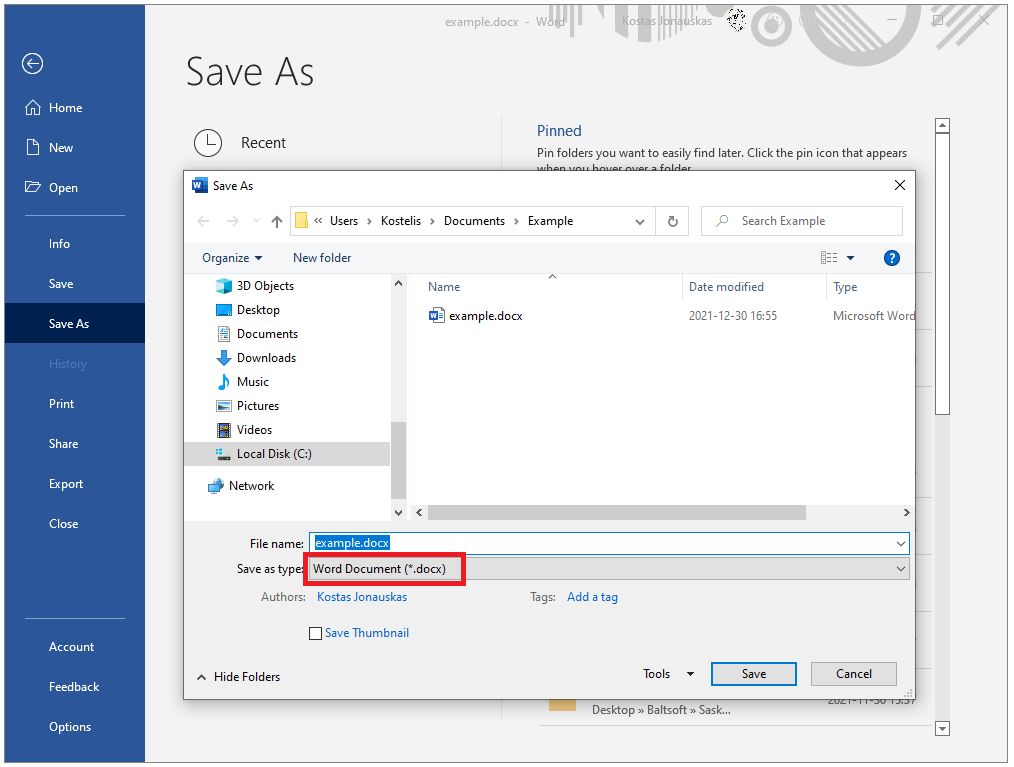
This is convenient if you already own Word, but the conversion is rough on complex layouts: line breaks, page breaks, images, and margins often shift, and tables can fall apart. Expect manual cleanup on anything beyond plain text, and note that Word cannot extract text from scanned PDFs.
Convert PDF to Word using Google Docs
Google Docs is free with any Google account and works in the browser:
- Go to docs.google.com and sign in.
- Click "Upload" and select the PDF you want to convert.
- Once uploaded, click "Open with" and choose "Google Docs".
- Click "File", then "Download", then "Microsoft Word (.docx)".
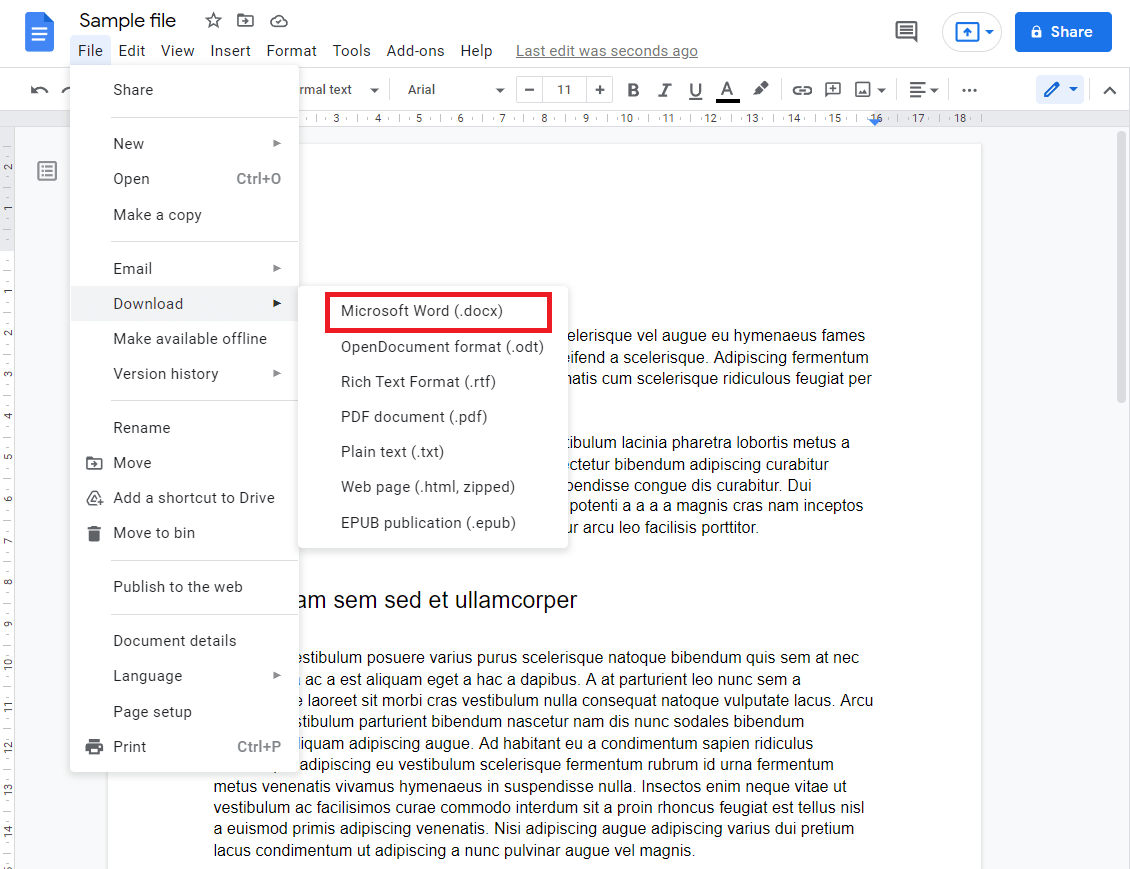
Quick and free, but Google Docs often misplaces the PDF's images and simplifies the layout, and the formatting can come out choppy, with uneven margins. It is fine in a pinch for simple, text-only documents.
Convert PDF to Word on a Mac
Preview, the PDF viewer built into macOS, can read and annotate PDFs but cannot save them as Word files. You have three options on a Mac:
- Use the online converter in Safari or Chrome. It is the same tool as on Windows and keeps the layout.
- Open the PDF in Pages (File, then Open), then export it with File, Export To, Word. Pages handles simple documents well but tends to move images and break multi-column layouts.
- If you have Microsoft 365, recent versions of Word for Mac can also open and convert PDFs.
Convert PDF to Word on an iPhone or Android phone
The mobile Word app opens PDFs read-only and does not convert them. The simplest route on a phone is the browser: open the online converter, tap the file selector, pick the PDF from Files (iPhone) or from your downloads (Android), and save the .docx that comes back into the Word app or your cloud drive. The whole job takes under a minute and works the same on iOS and Android.
Convert PDF to Word with Adobe Acrobat
Acrobat Pro converts PDFs to Word from File, Export To, Microsoft Word (or the Convert tool in the new interface), and the results are good, including OCR for scans. The catch is the price: Export PDF is not part of the free Acrobat Reader, so this only makes sense if you already pay for Acrobat Pro for other reasons.
Which method keeps the formatting best?
| Method | Cost | Scanned PDFs | Formatting |
|---|---|---|---|
| Online converter | Free | Yes, with OCR | Layout, images and tables kept |
| Microsoft Word | Included with Word | No | Good for plain text, tables often break |
| Google Docs | Free | Partly | Images often misplaced, layout simplified |
| Pages (Mac) | Free on Mac | No | Simple documents only |
| Adobe Acrobat Pro | Paid | Yes | Very good |
If the document contains images, tables, or careful layout, use the online converter: it is built for exactly this job and returns a Word file that mirrors the original PDF. Word and Google Docs are workable fallbacks for plain text when you are offline or prefer to stay inside one app.
Fixing the most common problems
The PDF is password protected. No converter can read an encrypted file. Remove the password first with the free Unlock PDF tool (you need to know the password), then convert.
Tables come out as tab-separated text. This is typical of Word's built-in conversion. Run the PDF through the online converter instead, which rebuilds tables as real Word tables.
Fonts look different. PDFs embed fonts, Word documents do not. If the original used a font you do not have installed, Word substitutes the closest match. Install the font or pick a similar one in Word to restore the look.
The converted text is one long paragraph, or the text is missing. The PDF is a scan. Use the online converter, which applies OCR automatically, rather than Word or Google Docs.
The file is too large to upload. Shrink it first with the free Compress PDF tool. The text stays intact, only the embedded images are reduced.
Frequently asked questions
Is converting PDF to Word free?
Yes. The online converter is free to use, with a short wait between files; a premium membership removes the wait and the file size limit. Microsoft Word and Google Docs are free if you already have access to them.
Do I need to sign up to convert a PDF to Word?
No. Conversions work without an account. A premium membership removes the waiting time between files and lifts the file size limit.
Will the formatting survive the conversion?
With the online converter, yes for the large majority of documents: fonts, paragraphs, tables, images and page layout are rebuilt as closely as possible. Word and Google Docs keep plain text well but frequently move images and break tables.
Can I convert a scanned PDF or a photo of a document?
Yes. The online converter runs OCR on scanned pages and returns editable text. Word and Google Docs cannot do this reliably.
Is it safe to convert a confidential PDF online?
Files are transferred over an encrypted connection and deleted from our servers shortly after conversion. They are never shared with third parties. For documents that must not leave your computer at all, use Microsoft Word offline.
How do I turn the Word document back into a PDF?
Use the free Word to PDF converter, or in Word choose File, Save As, and pick PDF as the format.